
Working offline: keeping task cards moving where Wi-Fi does not reach
Hangars, ramps and outstations rarely have perfect coverage. How to plan for offline work so records stay complete and nobody waits for a signal.
- Assume coverage will fail somewhere, and plan for it from day one.
- Download the work before the shift, not at the aircraft.
- Decide in advance how conflicting edits are resolved and who resolves them.
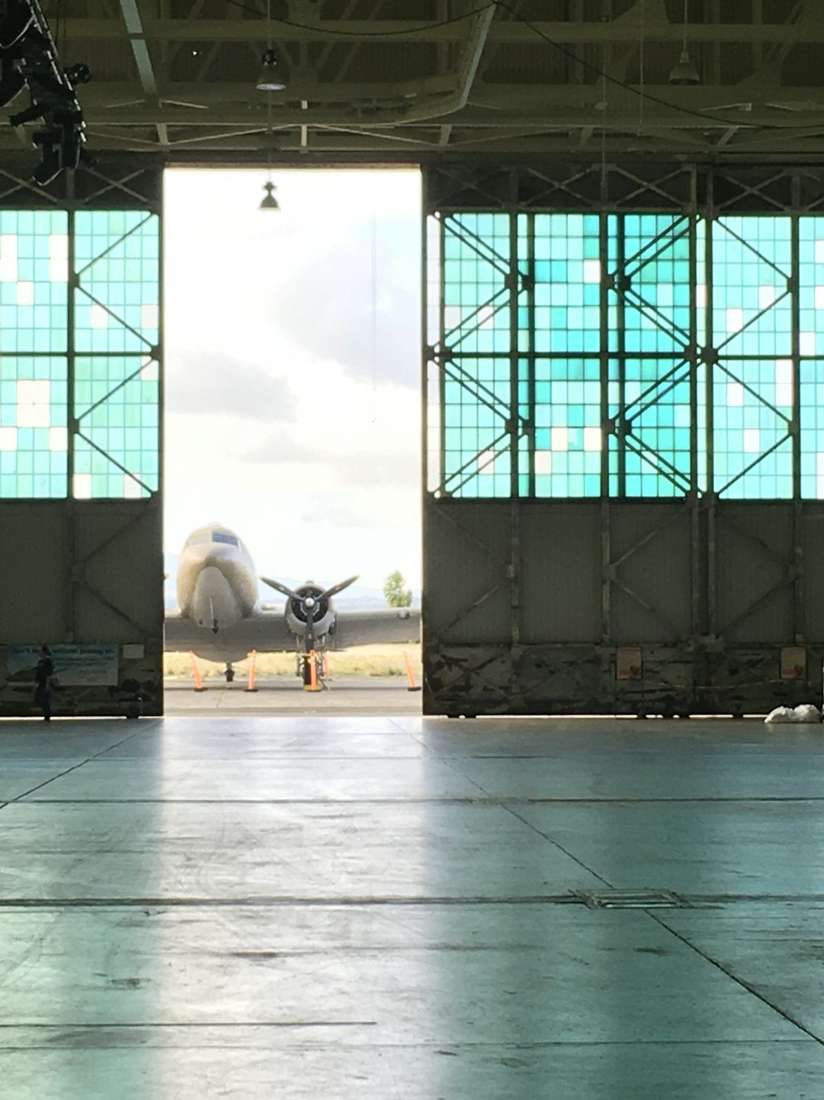
Wi-Fi in a hangar is rarely as good as the survey promised. Steel structures, large aircraft and busy ramps all interfere with the signal, and outstations may have no reliable connection at all. If digital task cards depend on a constant connection, work stops or moves back to paper.
Planning for offline work from the start avoids both.
Download before the shift
The simplest rule is to load the work before it is needed. At the start of a shift, technicians should download the cards, drawings and references for their assigned tasks while they still have a good connection. That way the aircraft is never the place where a download is attempted.
Know what works offline
Be clear about which actions work without a connection. Entering readings, completing steps, adding photos and signing steps should all work offline. Actions that depend on other people, such as a stores issue or a customer approval, can be queued and sent when the connection returns.
Keep the checks local
Limit checks on readings and authorisation checks on signatures should run on the device, not only on the server. A technician working offline should still be stopped from entering an out of limit value without a warning, or signing for work outside their authorisation.
Plan for conflicts
If two people edit the same card while offline, something has to decide which change wins. Agree the rules in advance. In most cases the system should keep both entries, flag the conflict and ask a supervisor to resolve it, rather than silently overwrite one of them.
Make the sync status obvious
Technicians should always know whether their work has reached the server. A clear indicator on each card, showing synced, waiting or failed, avoids the worry that a signed step has been lost. Certifying staff should not be able to release an aircraft while cards for that work are still waiting to sync.
Test what happens when things fail
- Switch off the network halfway through a task and continue working.
- Let a device run out of battery with unsynced entries and check nothing is lost.
- Edit the same card on two devices and see how the conflict is shown.
- Restore the connection and confirm that photos, readings and signatures all arrive intact.
Write it into the procedure
Your exposition should describe how offline work is performed, how records are synchronised and what happens if synchronisation fails. A short fallback procedure, including when to revert to paper, gives teams confidence and gives auditors a clear answer.
Measures worth tracking
These measures help you see whether the approach is working. Track the trend over several months rather than reacting to a single figure.
More insights

Where AI helps in aircraft maintenance, and where it should not
AI is good at reading, sorting and spotting patterns. Airworthiness decisions still belong to qualified people. A practical view of where the line sits.
Read article
What technicians actually need from a mobile maintenance app
A tablet at the aircraft only helps if it is faster than paper. What matters to technicians, and what to test before you choose.
Read article
Where MROs lose hours between the hangar and stores
Most check delays are not caused by the work itself. They start in the gap between the people doing the work and the people supplying the parts.
Read article